Auditors working for a certification body
Assignments, templates and structured submission form the shared workflow with your certification body. Access depends on the agreed offering.
From audit planning to the report: Audit Compass connects questions, evidence and findings. AI supports you with research and documentation. The professional assessment remains yours.
Documents, questions and previous results are scattered.
Notes and evidence need to be assembled for reporting.
Different templates make submission to certification bodies harder.
Preparation and question sets have to be compiled again for every audit.
Nonconformities and actions are hard to track across several audits.
Writing the report after the audit often takes more time than the on-site assessment.
You conduct audits yourself and want to document your information traceably throughout the entire process? Audit Compass is designed for auditors who want to connect planning, execution and follow-up in a structured way.
Assignments, templates and structured submission form the shared workflow with your certification body. Access depends on the agreed offering.
Work through questions, evidence and findings for your audit assignments in a structured way.
Plan audit programmes and individual audits and document results traceably.
Keep audit findings and actions in context.
After an audit, notes, documents and findings often have to be merged and prepared for the report. Audit Compass assigns the information to the respective audit – so you can work in a shared context for preparation, reporting and follow-up.
Define audit scope and criteria and select or add questions for each assignment.
Assign documents, photos and notes to the relevant audit questions or findings. This keeps it traceable what your assessment is based on.
Use structured findings as the basis for a report draft. You review and edit the content before it is released.
Record responsibilities and deadlines and keep corrections and corrective actions in view.
The assignment, documents and current templates provide a common starting point. Structured report submission makes professional review and queries easier.
Conduct your audits even in locations without an internet connection. Audit Compass supports you in continuing your work on site offline.
Define audit scope, criteria and questions. Use customisable checklists for each process, site and risk context.
Capture evidence and findings during the audit and assign them to the relevant questions. You can also use Audit Compass on site without an internet connection.
Use the captured information for a report draft. Review and complete the professional content yourself.
Document actions, responsibilities and deadlines through to the effectiveness review. Earlier results help you find recurring topics.
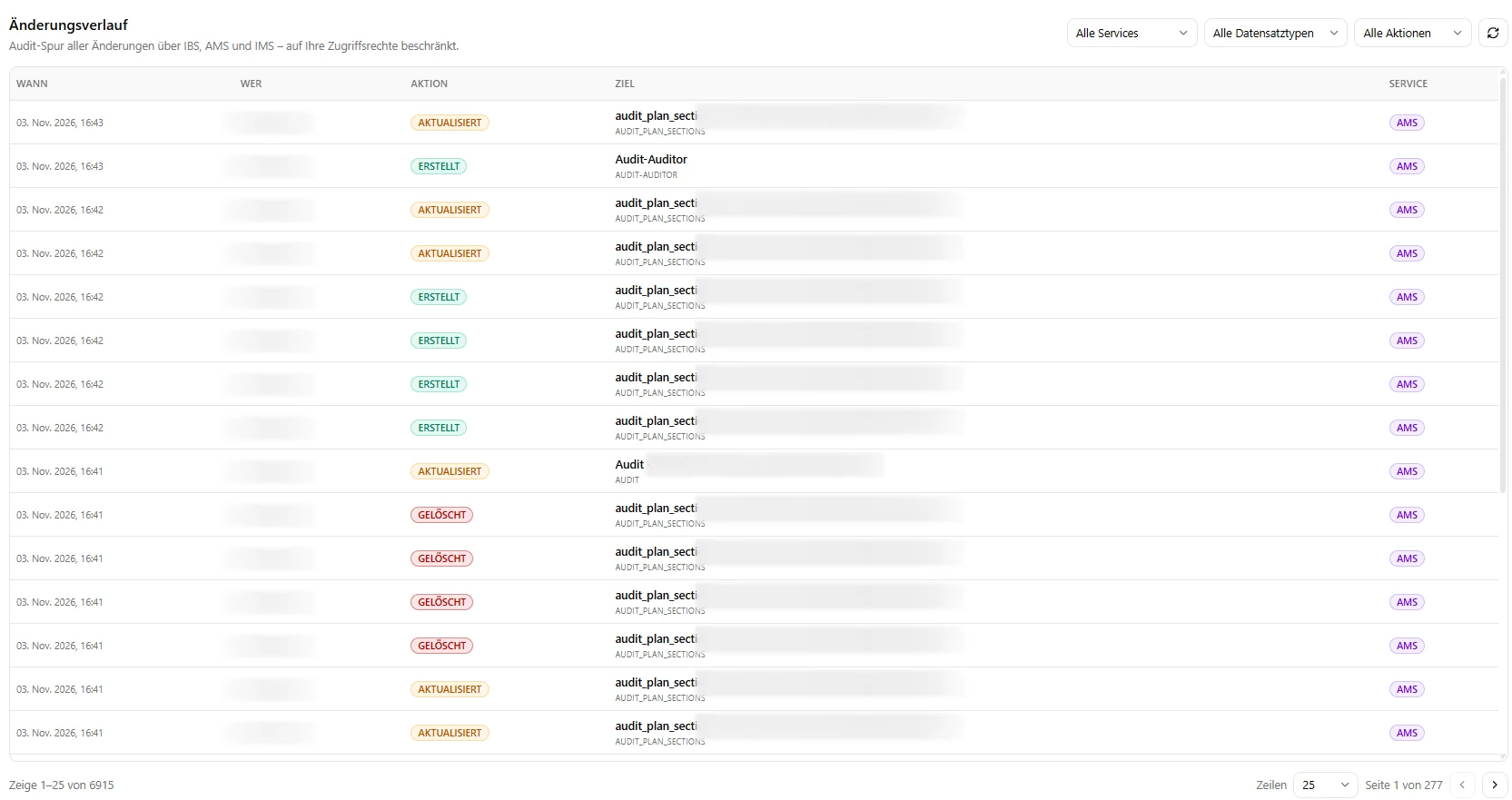
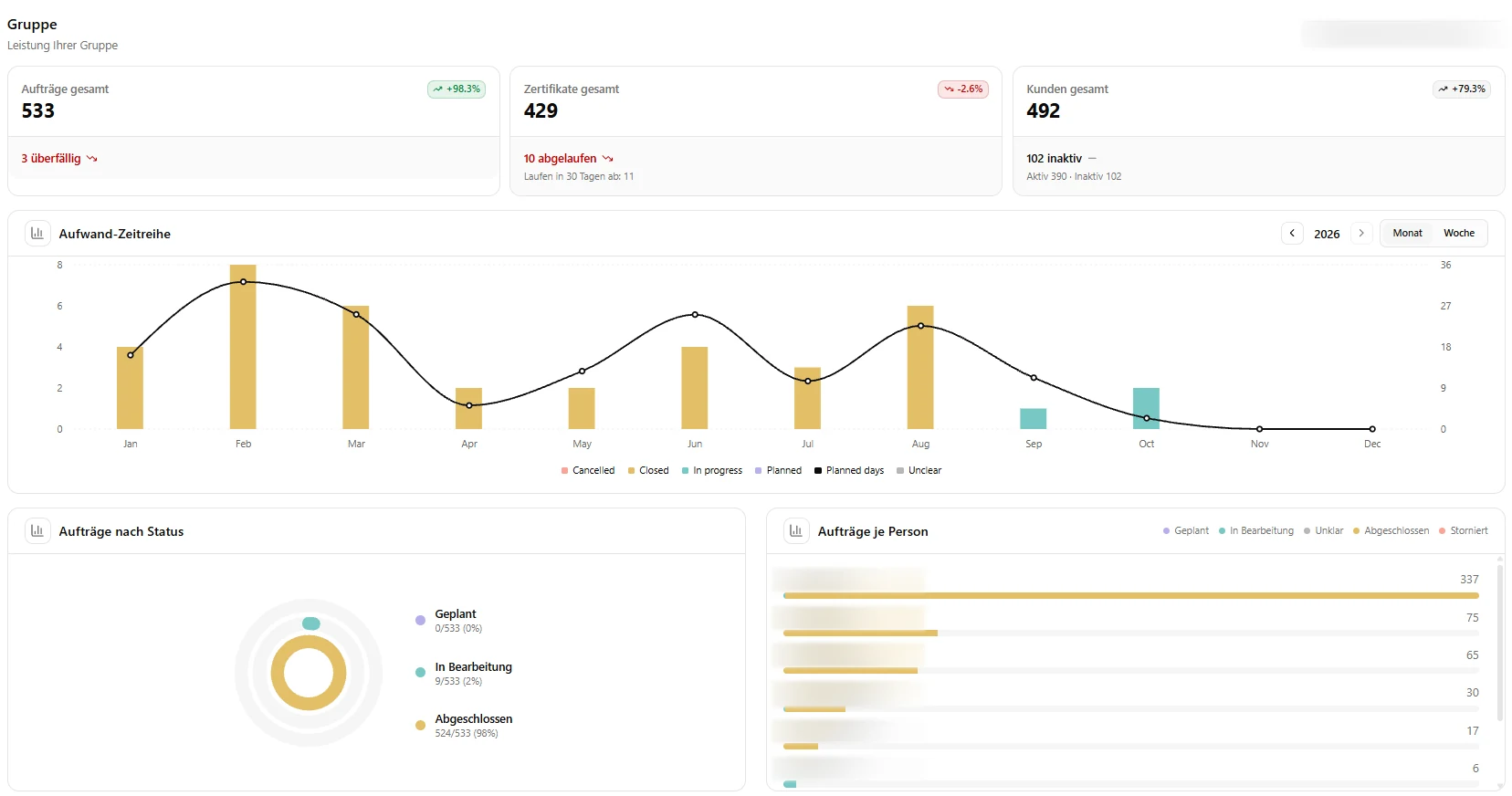
Three views from the platform: the overview of orders, certificates and audit hours, the change log of an audit and your group's performance.
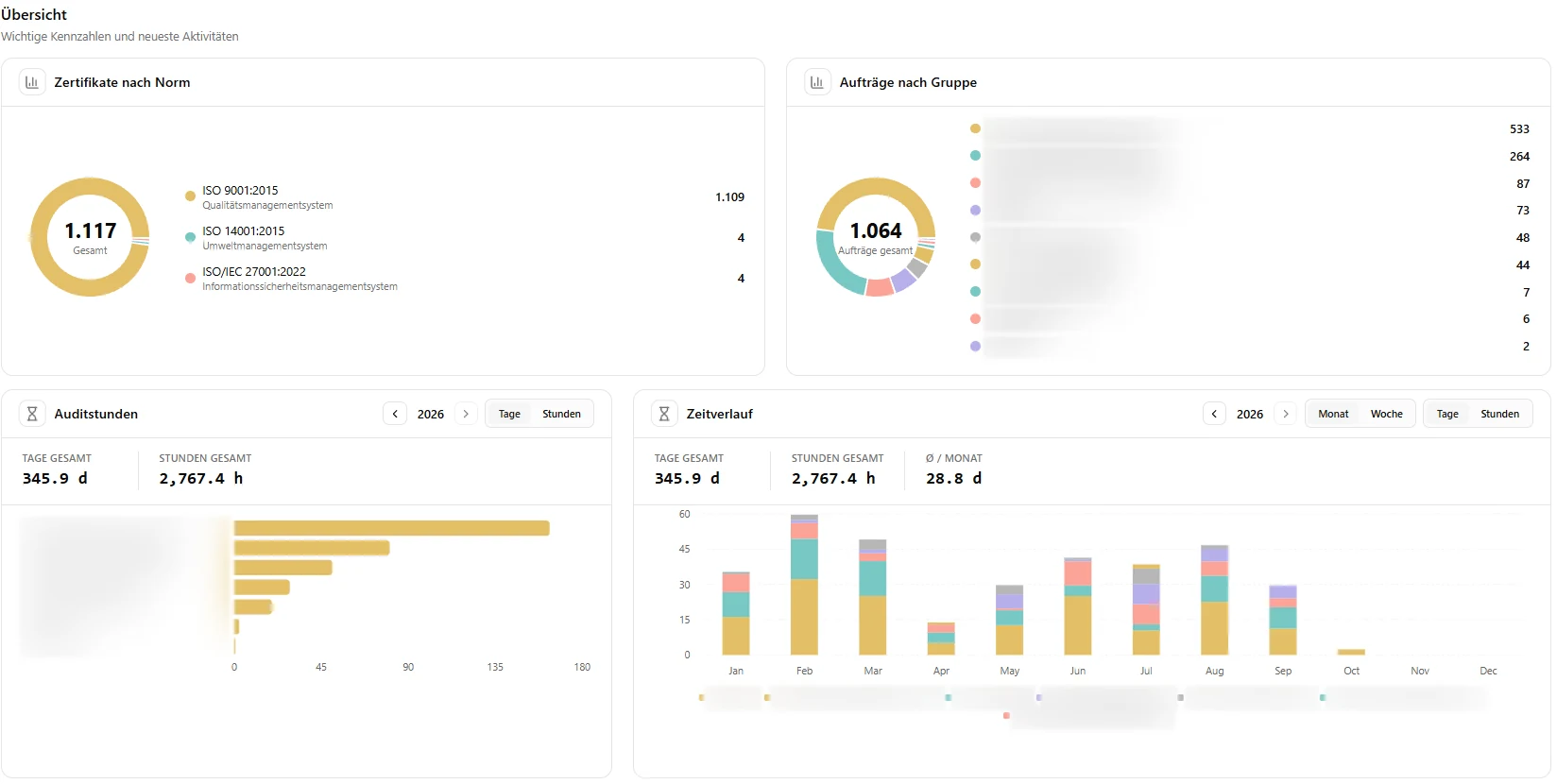
All key figures on one page: certificates by standard, orders by group, audit hours over the year and the trend of recent months.
These views come from a live audit environment. Customer and personal names have been obscured.
Based on your number of audits, your hourly rate and your level of digitalization, calculate the possible annual cost saving.
Current level of digitalization
The saving per audit follows from the selected level of digitalization and is a hypothetical assumption – not a measured Audit Compass value.
Annual time saved
60 hoursper yearWorking days released
7,5 daysper yearAnnual cost saving
7.500 €per yearTime saved per audit
1 hoursassumedAnnual cost saving = number of audits × saving × hourly rate
Example: 60 audits × 1 hour × €125 = €7,500.00, or 60 hours of work
The results shown are non-binding model calculations based on your inputs. The assumed time saved per audit is hypothetical and does not represent a proven Audit Compass customer result. The economic time value does not automatically equal an actual cost saving. Regulatory required audit times are not affected by this calculation.
AI supports research in approved documents and available standards as well as documentation. For example, it can compile pointers for an audit question or prepare a report draft from documented findings. You review sources, suggestions and conclusions and decide what is adopted. Certification decisions are made exclusively by the responsible body.
Audit information is confidential. Professional responsibilities and the release of results remain part of your process.
Define who supplies evidence, reviews reports and releases results to clients. Software does not replace professional review or responsibility for certification.
Only include information needed for your inquiry. Do not submit confidential audit files or personal evidence.
Access to approved audit results is not an IMS subscription. Responsibilities and permissions must be defined for each offering.
Discuss access options through your own work steps:
Prepare audit scope, criteria and checklists.
Document findings and prepare a report draft.
Trace responsibilities, deadlines and effectiveness reviews.
Access and features are agreed individually. An inquiry is not a registration.
For freelance, external and internal auditors and quality managers who audit. Request the appropriate access.
Questions can be selected or added for each audit context. This lets you tailor checklists to your audit assignment.
The AI can support the preparation of a report draft. You review and edit the content and are responsible for the professional conclusions.
Yes. Audit Compass can also be used without an internet connection, supporting you during on-site audits.
The right scope depends on your use and your licence. We discuss the options and terms with you.
View licence modelsDescribe your audit assignments and collaboration with your certification body.